 Saleva
Guide 5 of 6 · Shop owner and staff
Staff, permissions and running two phones
Letting someone else serve customers without showing them your profit, and keeping two devices in step.
The moment a second person serves customers, informal record-keeping ends. Two things have to become true: every sale goes through the till, and everyone sees the same numbers.
Adding a staff member
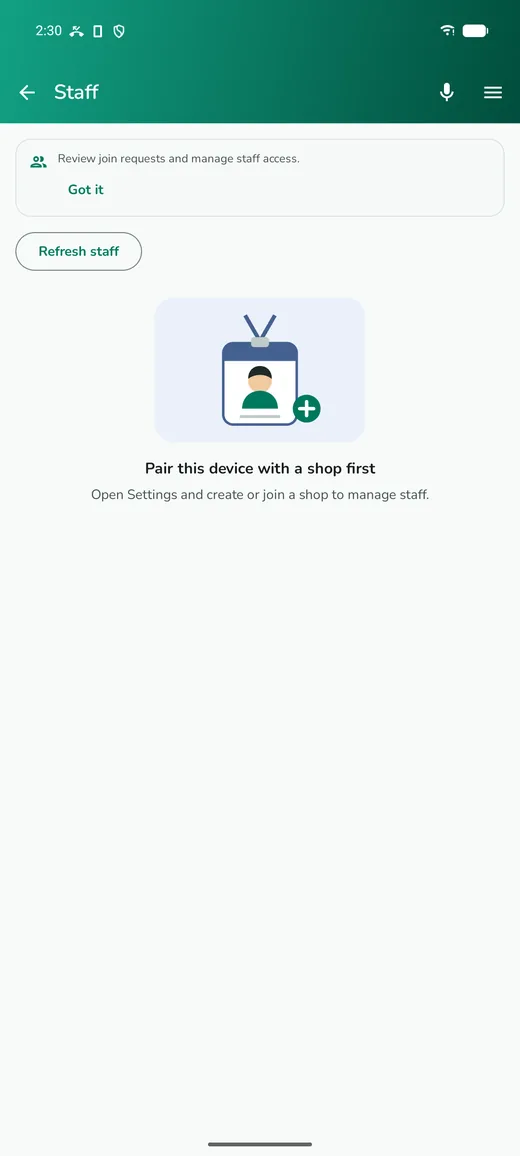
Open Staff from the side menu. Your shop has a code, shown on that screen and in Settings → Multi-device sync.
On the other person's phone:
- Install Saleva.
- On the first screen tap Join a shop.
- Enter your shop code and their name, and pick the role they are asking for.
- Tap send.
On your phone a request appears. You approve it and choose exactly what that person can do. Until you approve, their phone gets nothing.
Choosing permissions
Permissions are per person, not per role, so you can start from a role and then adjust. The ones that matter most:
- Sell — use the counter. Almost everyone needs this.
- Refund — reverse a sale. Worth withholding from new staff.
- See profit and See reports — the two most owners keep to themselves. Staff can sell all day without either.
- Edit products — change prices and stock. Withholding it prevents a great deal of accidental damage.
- Cash drawer — open and close shifts.
- Manage staff — approve other people. Keep this to yourself.
A cashier who can sell and take payments but cannot see profit, edit prices or delete sales is the usual arrangement, and it removes most of the ways a busy day goes wrong.
You can change permissions or remove someone at any time, and it takes effect immediately on their phone.
What staff see
A staff phone shows the six daily tabs and the screens their permissions allow. Settings is trimmed to what belongs to them: their language and appearance, notifications, their own sync state, help, and their ad credits. Your shop profile, your reports and the dangerous settings are not on their phone at all.
Riders are narrower still. A rider sees the runs assigned to them and nothing else: not the order inbox, not the catalogue, not your customers.
Keeping phones in step
Syncing needs the internet, and each phone pays for its own uploads.
- Downloading the shop's data is always free. A phone that has just joined receives your products and records without needing anything.
- Uploading that phone's own work costs credits, earned by watching a short ad on that phone. The owner's subscription does not cover staff phones, because each phone earns its own.
Between syncs, every phone keeps selling offline and catches up when it reconnects. If two phones edit the same product while both are offline, the app tells you there is a conflict and lets you choose which version to keep rather than silently discarding one.
Settings → Multi-device sync shows which devices are connected, what synced and when, and what is still waiting. If something looks wrong, Send log to support sends us the sync log — what synced and when, not your sales figures.
Wi-Fi sync in the shop
If two tills are on the same Wi-Fi, they can hand each other their unsent changes directly, without going through the internet at all. Turn it on in Settings → Multi-device sync → Sync over shop Wi-Fi, either on automatic or by typing the other phone's address. It costs one credit on the phone that starts the exchange, and the cloud still catches up anything a phone misses.
Questions
Can a staff member take my data with them?
They can see what their permissions allow while they are a member. Remove them and their phone stops receiving and sending immediately. Backups are tied to your own Google account, not theirs.
Do I need internet for staff to sell?
No. Their phone sells offline exactly like yours. Internet is only needed for the two phones to see each other's work.
What if a staff member's phone is lost?
Remove that device in Settings → Multi-device sync. It stops syncing at once.
Why can staff not see Settings?
They can see their own sections. The parts that belong to the shop as a whole are owner business, so they are not shown on a staff phone.
Get Saleva
Free on Android. Selling, stock, customers and reports all work with no internet at all.